Trusted by our partner brands








Everything your team needs to know — from becoming a partner and verifying pass holders in person and online, to managing your partner portal.
MyAlumPass is built around a verified community of educated Nigerian professionals. Every partner on the platform is a statement about the standard of that community. We are selective because our pass holders expect us to be.
Every partner benefit must make a verified pass holder feel that their pass is genuinely worth having. A partnership that does not meaningfully elevate the holder's experience or reflect the quality of the community does not belong on the platform. As a guide, a saving below ₦2,500 on a one-off purchase at a brand with no repeat visit value is unlikely to qualify.
Every application is assessed against the criteria below. The three mandatory criteria are non-negotiable. If any one of them is not met, the application will not proceed.
Must be a registered company in Nigeria with a valid CAC number. Sole traders and unregistered businesses are not eligible.
Must have a verifiable physical premises where pass holders can present their AlumPass. Online-only businesses are not eligible at this time.
Must have a live, functional website. A social media page alone does not qualify.
The benefit offered must represent genuine value to a verified professional. We assess both the absolute saving and the frequency with which holders will use it.
The brand's positioning must be consistent with an educated, professionally engaged alumni community. Brand presentation, customer experience, and market reputation are all considered during review.
Must operate in one of the approved MyAlumPass partner categories: premium food and dining, fashion and lifestyle, health and wellness, technology and electronics, entertainment and leisure, co-working and professional spaces, or financial and professional services.
Must agree to and sign the partner participation agreement before being listed on the directory.
Must commit to honouring the agreed benefit for a minimum of 6 months. Shorter commitments are not accepted.
Must provide a named individual responsible for the MyAlumPass partnership at their business.
Fill in the partner interest form with your business details, contact information, the benefit you intend to offer MyAlumPass holders, and the duration of the partnership you are proposing.
Our team reviews your submission against the criteria above. We may contact you with follow-up questions. We aim to respond to all applications within a few business days.
If your application is approved in principle, we will send you a partner agreement setting out the agreed benefit, duration, and the obligations of both parties. Once you are satisfied, sign and return it digitally.
We review your signed agreement and any supporting documents. This is a standard due diligence step to protect the integrity of the MyAlumPass network.
Once approved, your business is added to the MyAlumPass partner network and listed on the public deals page at myalumpass.com/deals, visible to all verified pass holders. You also receive access to your partner portal and your merchant PIN.
| What happens | Details |
|---|---|
| Deals page listing | Your business is listed on the public MyAlumPass deals page, visible to all verified pass holders browsing partner benefits |
| Social media announcement | We announce your partnership across the MyAlumPass social media channels and will share content for your team to amplify |
| Partner onboarding | We send you onboarding information covering how to use the platform, how to train your team, and how to get the most from the partnership |
| Merchant PIN issued | You receive a unique merchant PIN used to verify pass holders, both in person via QR scan and online via the merchant verify page |
| Partner portal access | You gain access to your private partner dashboard to track redemptions, monitor spend, and update your listing details at any time |
If your business meets the criteria above, complete the partner interest form to begin your application.
Complete the partner interest form and our team will be in touch within a few business days.
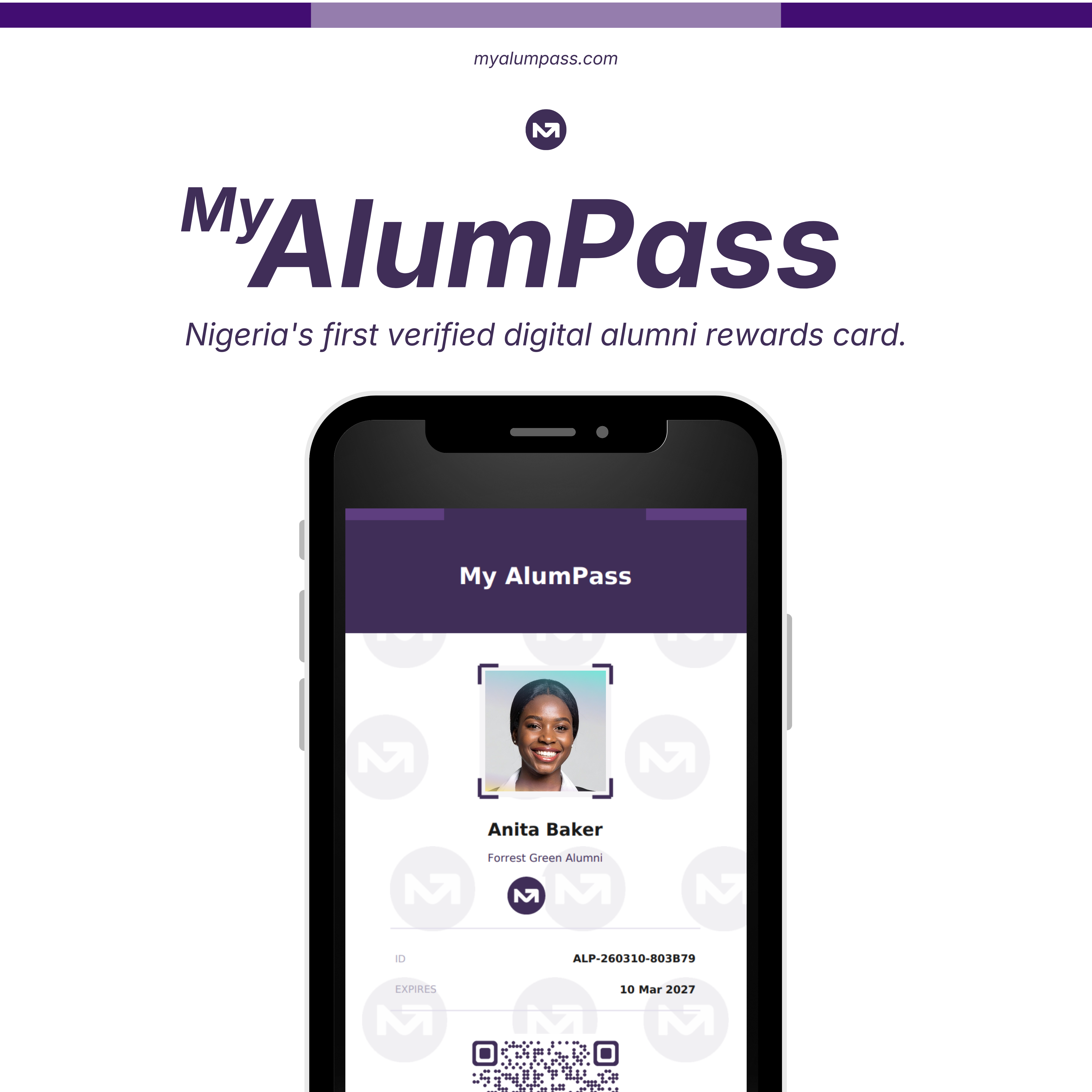
Complete the Partner Interest FormMyAlumPass is Nigeria's first verified digital alumni rewards card. Every pass holder has had their identity confirmed through their NIN or BVN. They are a real, verified graduate of a partner institution.
As a partner, you have agreed to offer a benefit to valid MyAlumPass holders. This guide explains exactly how your team confirms a pass is genuine before applying that benefit — whether the customer is standing in front of you or transacting remotely.
You will be issued a unique merchant PIN during onboarding. This PIN is used for all verifications — both in-person QR scans and online reference-based verifications. There is only one PIN per business. Keep it secure and do not share it with anyone outside your authorised team.
Select the method that applies to your situation. Both methods use the same PIN and record the transaction in the same way.
Use this method when the pass holder is in front of you. All you need is any smartphone with a camera and an internet connection — no app, no login.
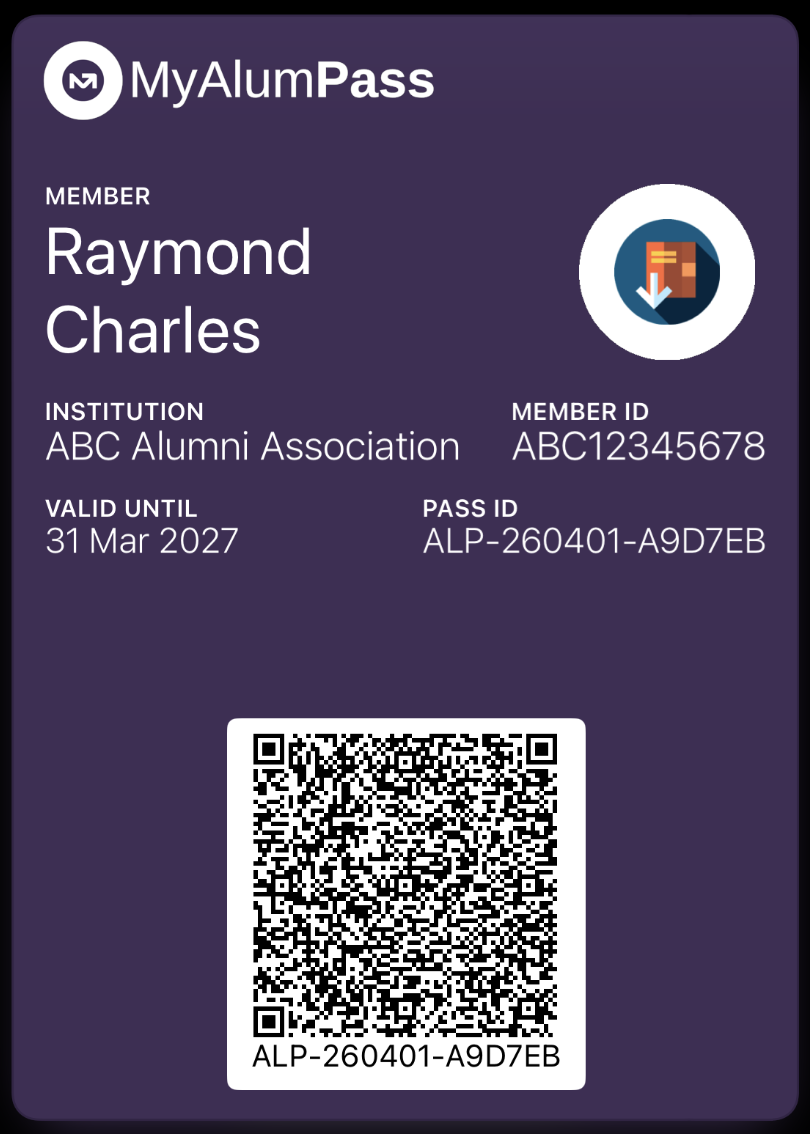
The pass holder opens their MyAlumPass on their phone showing the digital pass with a QR code. Ask them to present this to you.
Open the camera app on any smartphone and point it at the QR code. Your phone will detect the code and show a link. Tap it to open the verification page in your browser.
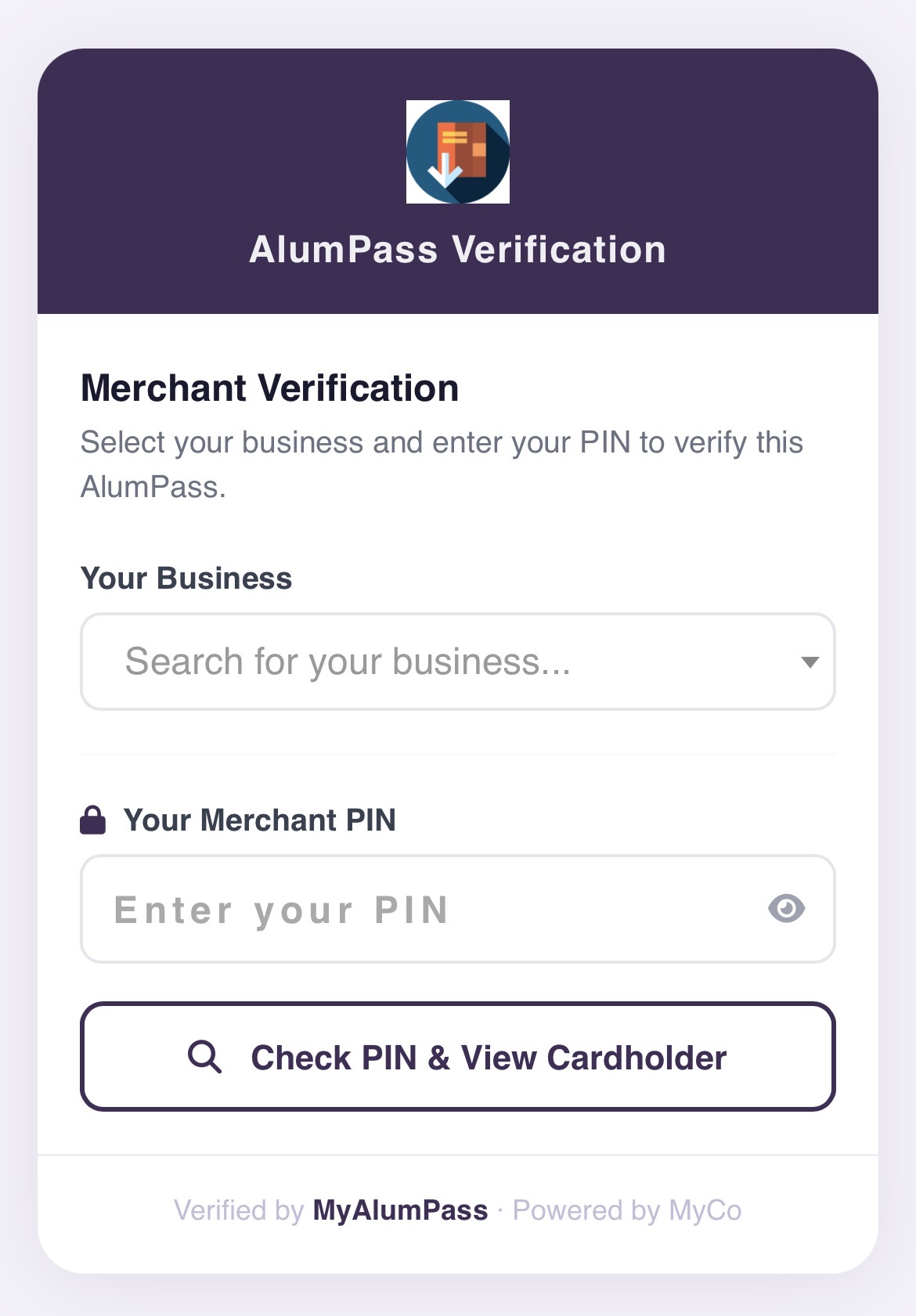
Select your business from the list, then enter your unique merchant PIN. Tap Check PIN & View Cardholder.
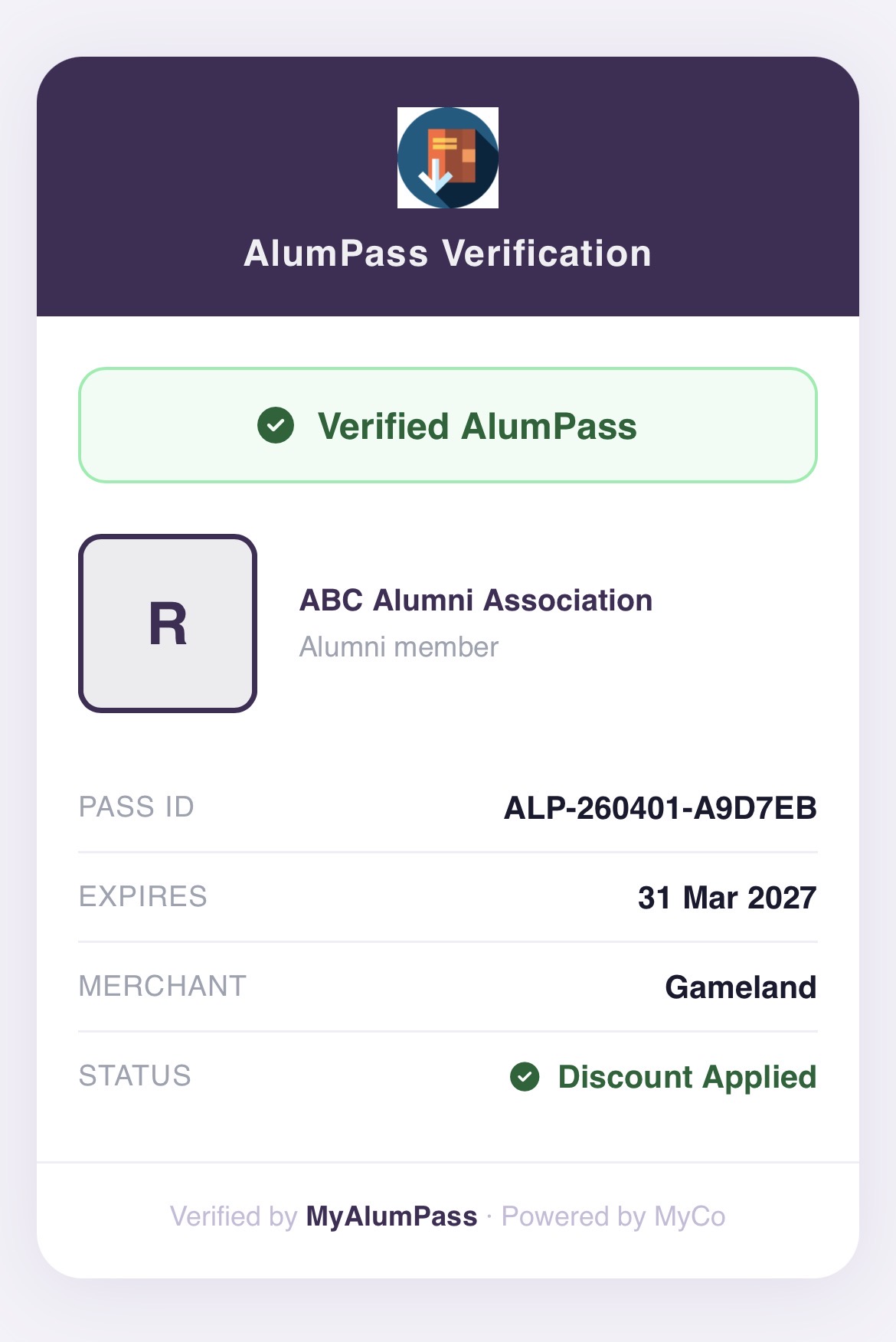
Once your PIN is confirmed, the cardholder's photo and initials appear on screen. Compare the photo to the person in front of you to confirm they match before proceeding.
Enter the full transaction amount before any discount is applied, then tap Confirm & Apply Discount. The redemption is logged automatically.
The screen will confirm the transaction has been recorded. Apply the agreed benefit to the pass holder's purchase.
Use this method when the pass holder is not physically present — for example, when they contact you by phone, email, or WhatsApp to claim their benefit. They quote their pass reference to you, and you verify it at myalumpass.com/merchant/verify.
The pass reference starts with ALP- followed by a date code and short code — for example, ALP-240815-XYZABC. It is printed on their PDF pass and shown on their Google or Apple Wallet card. Ask them to read or type it out to you.
On any device, open myalumpass.com/merchant/verify. You will see the verification form. No login is required.
Type the pass reference into the first field, select your business from the dropdown, and enter your merchant PIN. This is the same PIN used for in-person QR verification — there is only one PIN per business.
Enter the full transaction amount before any discount is applied, then tap Verify & Record Transaction. The system checks the pass, records the transaction, and calculates the discount automatically.
The page will confirm the transaction has been recorded. Apply the agreed discount to the customer's order. You do not need to keep a separate record — the transaction is logged in your partner portal.
| Field | QR scan | Online reference |
|---|---|---|
| Pass status | Active / expired / invalid | Active / expired / invalid |
| Cardholder photo | Shown after PIN confirmed | Not shown (remote transaction) |
| Cardholder initials | Shown alongside photo | Not shown |
| Discount rate | Shown after PIN confirmed | Applied automatically on confirm |
| Transaction recorded | Yes — on confirmation | Yes — on confirmation |
| Appears in portal | Yes | Yes |
Do not apply the benefit in any of these situations:
Please reach out before your launch date if you would like a walkthrough for your team.
The Partner Portal is available at:
Access is granted using the email address registered against your partner account. There is no password. A one-time sign-in code is sent to your email each time you log in.
Visit app.mycentreoffice.com/merchant-portal on any device. You will see a sign-in screen asking for your email address.
Type in the email address used to register your partner account and tap Send Code.
You will receive an email from MyCo containing your one-time sign-in code. Check your junk folder if you do not see it within 2 minutes.
Type the code from your email into the verification field and tap Sign In. You will be taken directly to your partner dashboard.
Plus a monthly trend chart and a log of your 20 most recent redemptions — including both QR scan and online reference verifications.
| Metric | What it shows |
|---|---|
| Total Scans | Total number of AlumPass verifications at your business — both QR scans and online reference checks combined |
| Verified | Verifications where the pass was confirmed and the benefit applied |
| Mismatches | QR scan verifications where the photo did not match and the benefit was declined |
| Total Spend | Combined pre-discount transaction value across all verified redemptions |
| Total Benefit Given | Total benefit value your location has provided to MyAlumPass holders |
| Avg. Transaction | Average pre-discount spend per verified redemption |
From the portal you can update your offer description, website URL, physical address, and city. Changes appear on the deals page immediately.